TR-069 router management
Provision a new subscriber’s router, diagnose a Wi-Fi complaint and maintain firmware through IconWave’s Auto Configuration Server (ACS). Each workflow starts with the settings the device can report or change.
How the router talks to the ACS
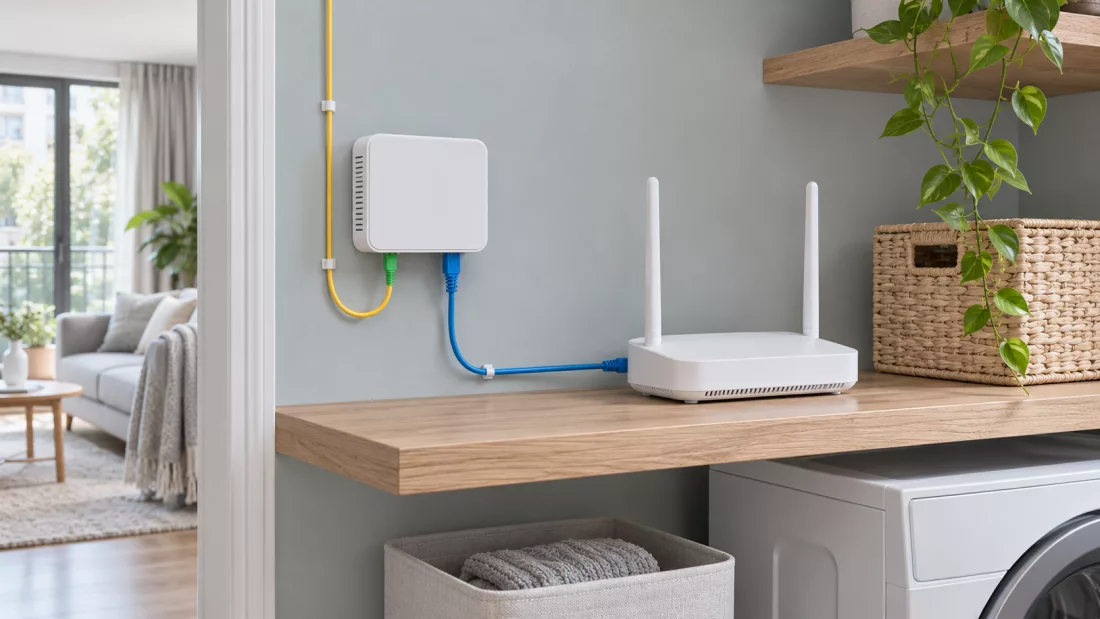
TR-069 defines the CPE WAN Management Protocol (CWMP). The customer premises equipment (CPE), such as a broadband router, opens a management session with the operator’s ACS.
- Check in. The router sends an Inform message identifying itself and the event that prompted contact, such as a boot or periodic check-in.
- Exchange settings. During the session the ACS can read parameters, write supported values or request an operation. A connection request can prompt a reachable router to start a session.
- Verify the outcome. Inspect the response or fault and, where needed, read back the setting. A firmware operation can finish and report its transfer result in a later session.
Protocol reference · Broadband Forum TR-069 specification (PDF)
What your team can do with TR-069
Choose a task to see how an ISP team would use it. Available parameters and operations depend on the router model, firmware and supported IconWave profile.
Customer support and provisioning teams
Is the subscriber’s problem on the WAN or the home Wi-Fi?
Feature guide 8 features
Customer lookup
Find the subscriber’s router or ONT and check its reported model, serial number and firmware.
Why it helpsVerify the physical device before changing settings after a replacement.
TR-069 and TR-369 management
Read or change management parameters exposed by the device and its supported protocol profile.
Why it helpsInspect equipment during a call and resolve supported settings issues remotely.
Zero-touch provisioning
Prepare a service profile for a compatible device to receive when it contacts the management service.
Why it helpsGive installers a repeatable setup for WAN, VLAN and Wi-Fi.
WAN, PPPoE and VLAN
Check WAN state, connection type and service VLAN together.
Why it helpsInvestigate authentication or service configuration before changing Wi-Fi.
Wi-Fi settings and clients
Inspect the SSID, channel and associated clients. Review signal and interference measurements where available.
Why it helpsDistinguish a missing network name from poor signal or a single-client issue.
Connectivity history
Compare check-ins, disconnects and recovery times with the subscriber’s complaint.
Why it helpsInvestigate an intermittent fault even after the router reconnects.
Restart and factory reset
Restart a supported device or restore vendor defaults. A factory reset can erase service and management settings.
Why it helpsChoose the recovery action and plan how the device will reconnect.
Bulk changes and firmware
Group compatible devices, pilot a settings change or firmware rollout, then check the values or version reported.
Why it helpsVerify a small group before expanding a fleet change.
Router management examples
Identify the subscriber’s router
Search by customer, then check the router’s reported model, serial number and software version before changing settings. When a subscriber swaps equipment, confirm which serial number belongs to the replacement.
In practice. A support agent distinguishes two routers with the same model name by checking the serial number on the customer’s label.
Provision a new or replacement device
A router configured to reach the ACS can receive the service settings for its supported profile when it checks in. Prepare the WAN, VLAN and Wi-Fi values in a template so installation teams can repeat the same setup across compatible devices.
In practice. For a replacement router, match the customer and service profile, apply the intended settings, then verify the WAN connection.
Check WAN, PPPoE and VLAN settings
Start with the router’s reported WAN connection state. For a PPPoE service, compare the configured connection type and service VLAN with the subscriber’s plan. A mismatch gives support a specific setting to investigate before changing the wireless network.
In practice. In the sample, RTR-01 reports a connected PPPoE session on VLAN 100. That gives the agent a reason to examine the local Wi-Fi settings next.
Manage Wi-Fi and connected clients
Read the wireless network name and channel exposed by the device. Inspect associated clients and available signal history to investigate whether a problem affects one client or the whole home. Devices with suitable radio measurements can also provide evidence of interference.
In practice. A subscriber cannot find their usual network after a router replacement. Preview an SSID change while preserving the WAN and VLAN configuration.
Investigate missing data and intermittent service
Compare the last successful contact, online and offline history, and available measurements. An old reading can reflect a failed collection or a router that has yet to check in. Follow the associated ONT and upstream path in IconWave when several customers report similar symptoms.
In practice. If multiple routers behind one PON lose connectivity together, inspect the shared fiber path before restarting individual devices.
Restart equipment or restore factory settings
A restart interrupts service while the device boots with its saved configuration. A factory reset restores vendor defaults and can remove subscriber settings, including the information needed to reconnect to the ACS. Check the recovery and provisioning path before using it.
In practice. After an authorized restart, look for a fresh device check-in and verify WAN state before closing the support ticket.
Review and apply changes across a group
Select devices that share a compatible profile. Compare each router’s current values with the proposed template and review exceptions. After a change, check the values reported by each device so an unavailable router stays visible for follow-up.
In practice. Pilot a Wi-Fi configuration on one router before extending it to other devices with the same model and firmware.
Plan and verify a firmware rollout
Match the firmware image to the hardware revision and check the version already installed. Plan for service interruption, test a small group, then inspect transfer results and the software version reported after each router returns.
In practice. A completed file transfer and a router reporting the expected firmware are separate checks. Use both when reviewing the rollout.
Try a remote Wi-Fi change
Choose a fictional customer, read the WAN state, then open Wi-Fi settings. Preview a new network name or channel and apply it to the browser sample.
Wi-Fi network
IconWave-Sample-01
Access connection
WAN connected · PPPoE · sample•••
VLAN 100 · TR-069 (CWMP) via ACS
Disconnected 08:20 UTC
Back online 08:30 UTC
Which features will my routers expose?
A router’s data model describes its settings and measurements. Newer devices may expose the TR-181 Device:2 model. Older equipment may use InternetGatewayDevice:1. Firmware, writable parameters and vendor extensions can differ even within a hardware family.
For diagnostics, ask which tests the specific profile exposes. A router may support a ping test from its WAN interface, for example. Check whether the test is available, whether it completed and when the result was collected.
TR-369 uses the User Services Platform (USP) protocol. Confirm TR-069 and USP support separately for each model, including ONTs with integrated routing.
Technical reference · Broadband Forum CWMP data models
Explore TR-069 with your device mix.
Bring your router models, firmware versions and a provisioning or support task. Use the demo discussion to confirm which parameters and remote actions each device supports.
Request a Demo